Runtime 2.2 Update

Post Processing Stacks

A group of settings that acts as filters to adjust and edit Mindtwin demos on the fly.

  • Depth of Field

  • Chromatic Abberration

  • Vignette

  • Color Grading

Navigating to Post Processing

Be sure to edit settings while in playback mode.

In the Hierarchy tab, click on Mindtwin -> BehaviorSystem and then within an inspector tab, click Global -> Settings -> Post Processing.


Depth of Field

This set of tools helps imitate the various angles of lenses of natural cameras.

Focal Length - Controls how large of an area that the depth of field blur is affecting around the focal point.

Blur Amount - Increases or decreases the amount of blur that the depth of field blurring has.

Focus Region Multiplier - Increases or decreases focus around the areas being affected by depth of field blurring.

Focal Length Offset - Completely moves around the area of focus for depth of field.


Chromatic Abberration

This set of tools helps imitate the colorful edge fringing that occurs from the imperfect alignment of lenses within a camera.
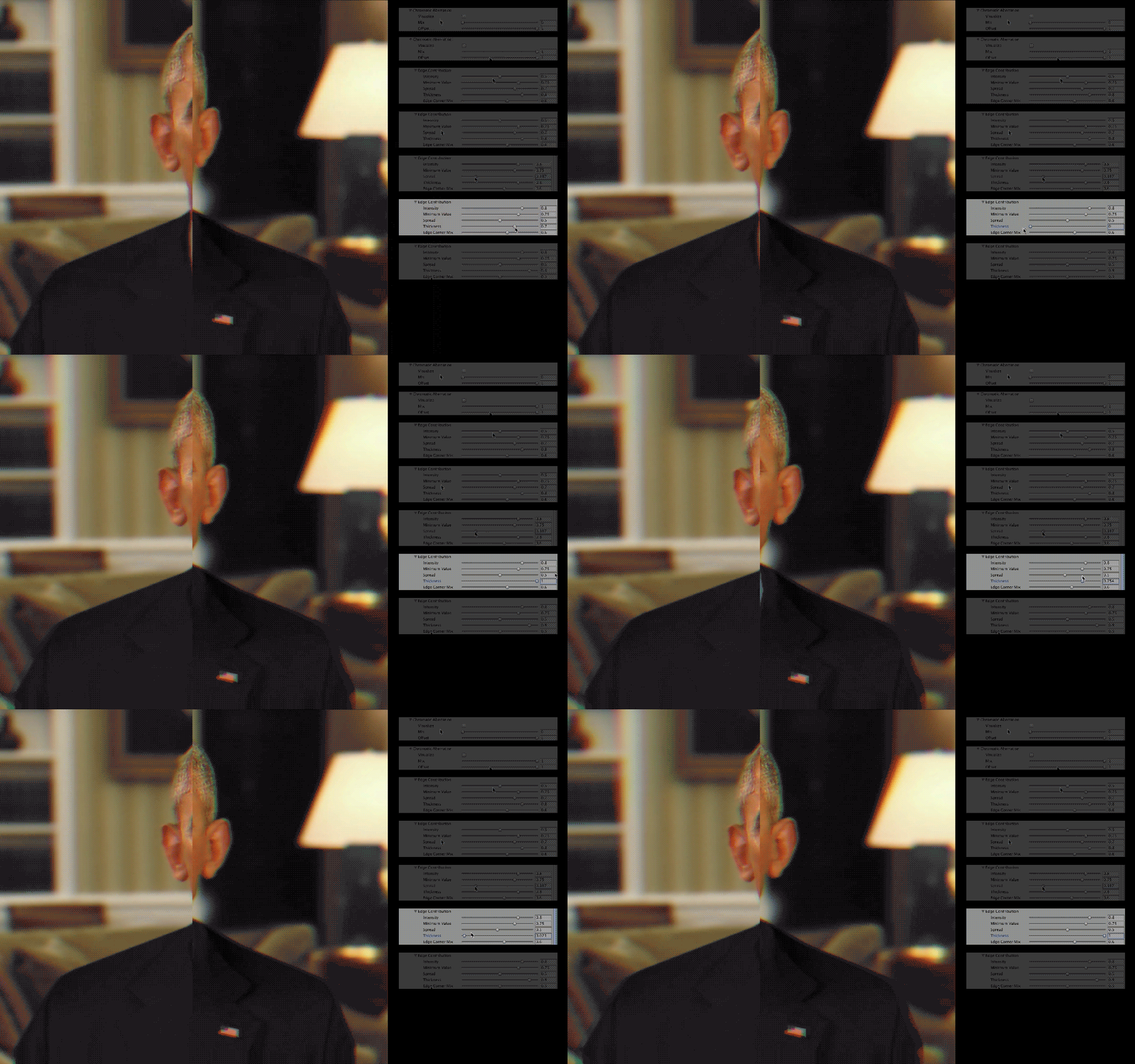
Mix - Controls how much of all of the settings under chromatic ABERRATION are going to be shown.

Offset - Increases or decreases the overall distance between the chromatic fringing that is occurring.

Inensity - Increases or decreases the overall visual severity of all the adjusted settings combined within Edge Contribution.

Minimum Value - Increases or decreases the amount of chromatic ABERRATION OCCURRING on the person.

Spread - Increases or decreases the area of chromatic aberration around the person.

Thickness - Increases or decreases the intensity of chromatic fringing itself around the person.

Thickness - Increases or decreases the intensity of chromatic fringing itself around the person.

Edge Corner Mix - Increases or decreases the amount of chromatic ABERRATION to be shown around edges of the screen.


Vignette

Vignetting is the darkening of the peripherals caused by the limitations of earlier variations of lens or “improper” adjustments of a camera’s settings. Due to its prevalence in a majority of what we see today in photographs and videos, it is actually considered abnormal to not see some slight form of vignette. These settings will help in delivering varying degrees of darkening around the peripherals of our Mindtwins to help further our goals of hyper realism.

Mix - Controls how much of all the vignette settings are going to be seen.

Intensity - Increases or decreases the overall visual severity of all the adjusted settings combined within Edge Contribution.

Minimum Value - Increases or decreases the amount of vignetting towards the center of the scene.

Spread - Increases or decreases the size of the area of vignetting around the corners of the scene.

Thickness - INCREASES or decreases the opacity of set vignette.

Edge Corner Mix - INCREASES or decreases the area of vignetting around all edges around the scene.


Color Grading

This set of tools gives easy access to simple editing that needs to be done in a quick hurry.

Mix - Controls how much of the color grading settings are going to be seen.

Contrast - Increases or decreases both the BRIGHTEST brights and the darkest DARK of the overall scene.

Red - Increases or decreases the amount of red within the scene.

Green - Increases or decreases the amount of green within the scene.

Blue - Increases or decreases the amount of blue within the scene.

Saturation - Increases or decreases the intensity of color within the scene.

Brightness - Increases or decreases the amount of light within the scene.

Highlight Compensation - Increases or decreases the brightest spots within the scene.

Previous
Previous

Zachary Quinto

Next
Next

AIF Post Processing Stack